Introducing GeoSlice
When I teach geometry at City College, our week spent on geometric dissections is, for me, a highlight of the course. I’ve loved the topic ever since my days in David Henderson’s geometry class at Cornell. (I’ve written about David’s dissection tasks here.)
Sketchpad undoubtedly has a role to play in helping students explore dissections. Consider, for example, the classic dissection of cutting a parallelogram into two pieces that can be rearranged to form a rectangle. Using Sketchpad, students can construct a parallelogram and an altitude, print the parallelogram and cut along its edges, slice its altitude, and use adhesive tape to rejoin its pieces to form a rectangle.
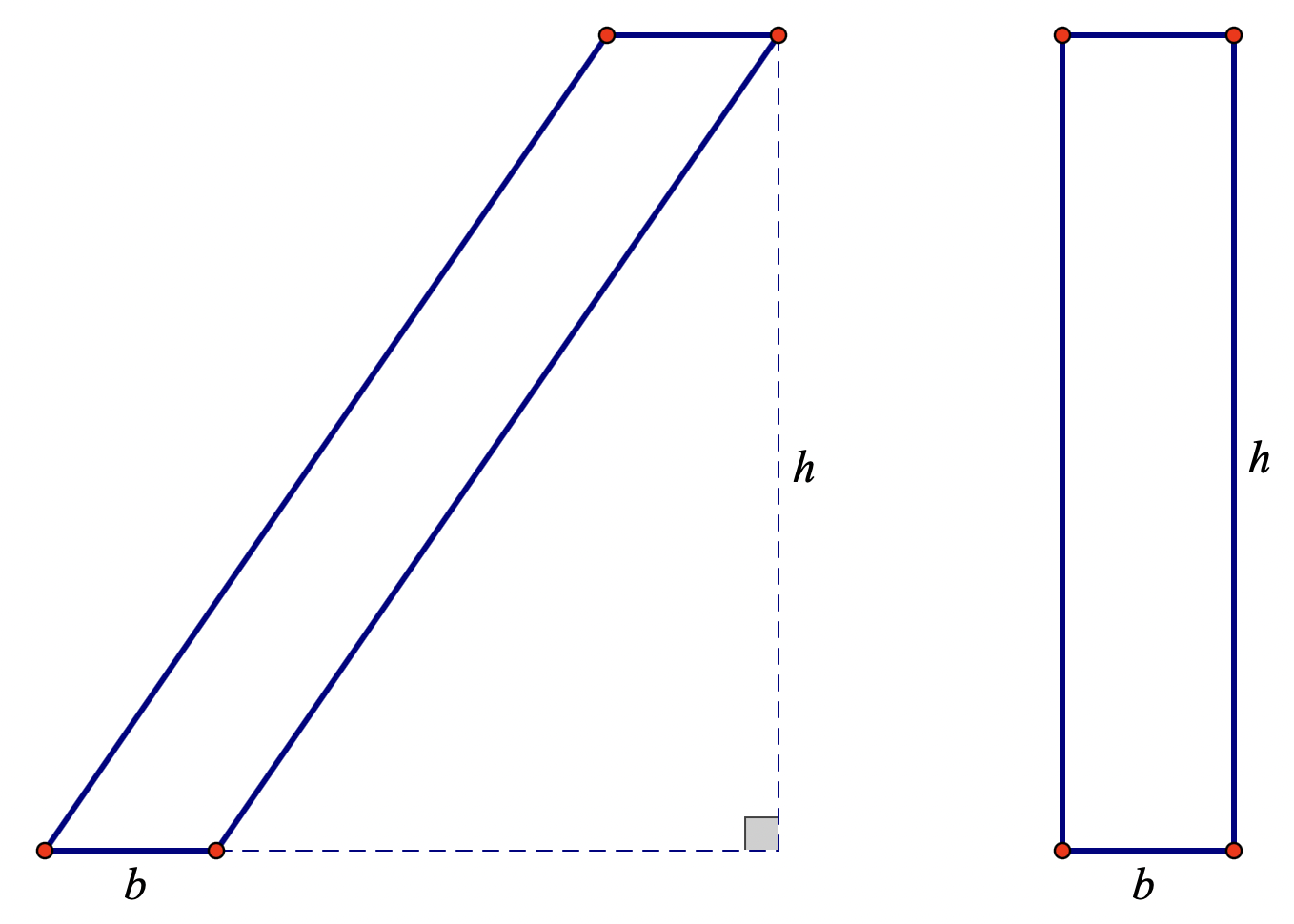
While such an approach works, it does require patience. If students make wrong cuts, then sigh… they must start fresh with a new sheet of paper. Furthermore, some dissections require multiple cuts. Below, for example, dissecting the parallelogram with base b and height h to form a rectangle with dimensions b x h requires seven cuts. Speaking from experience, I can say that the process of tracking and arranging so many shapes can become quite confusing for students!
I wanted an easy way for students to perform dissections on screen: to indicate precisely where to cut, to slice along the cut line(s), to translate, reflect, and rotate the shapes, and to then glue them back together into just a single polygon. The closest any software came to meeting my requirements was Polypad, but it lacked the ability to make precise cuts and rejoin shapes. I was left without any options until along came Claude. After just a month of prototyping—boom!—my new app, GeoSlice, was ready.
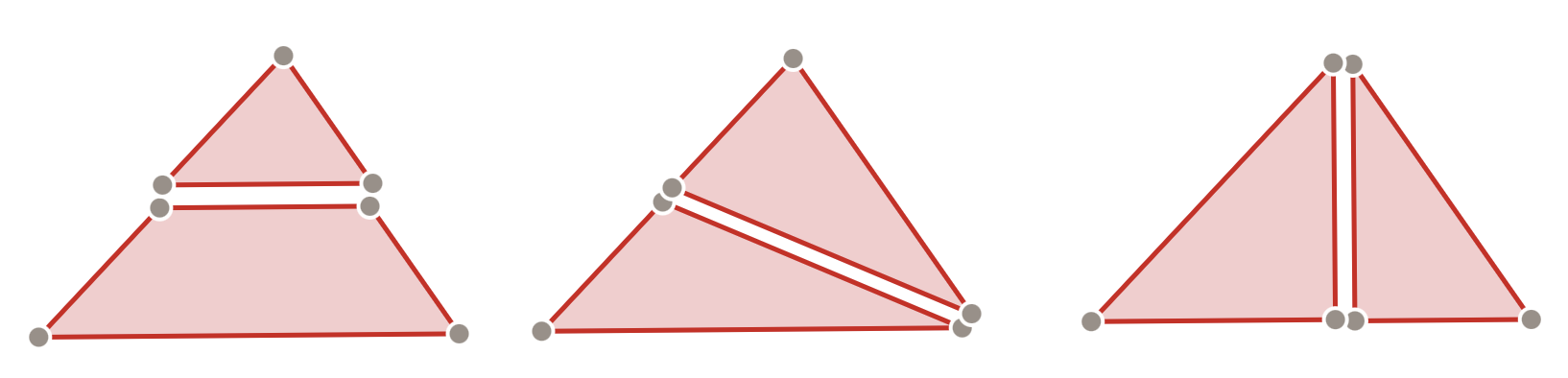
GeoSlice allows you to choose a polygon to add to your workspace (a triangle, quadrilateral, parallelogram, rectangle, square, or trapezoid) and drag its vertices, as you would with Sketchpad. You can then use the Segment tool to slice the polygon into two pieces with the endpoints of the cut being two vertices, the midpoints of two sides, or a midpoint and a vertex. You can also slice the polygon by constructing an altitude using the Perpendicular tool.
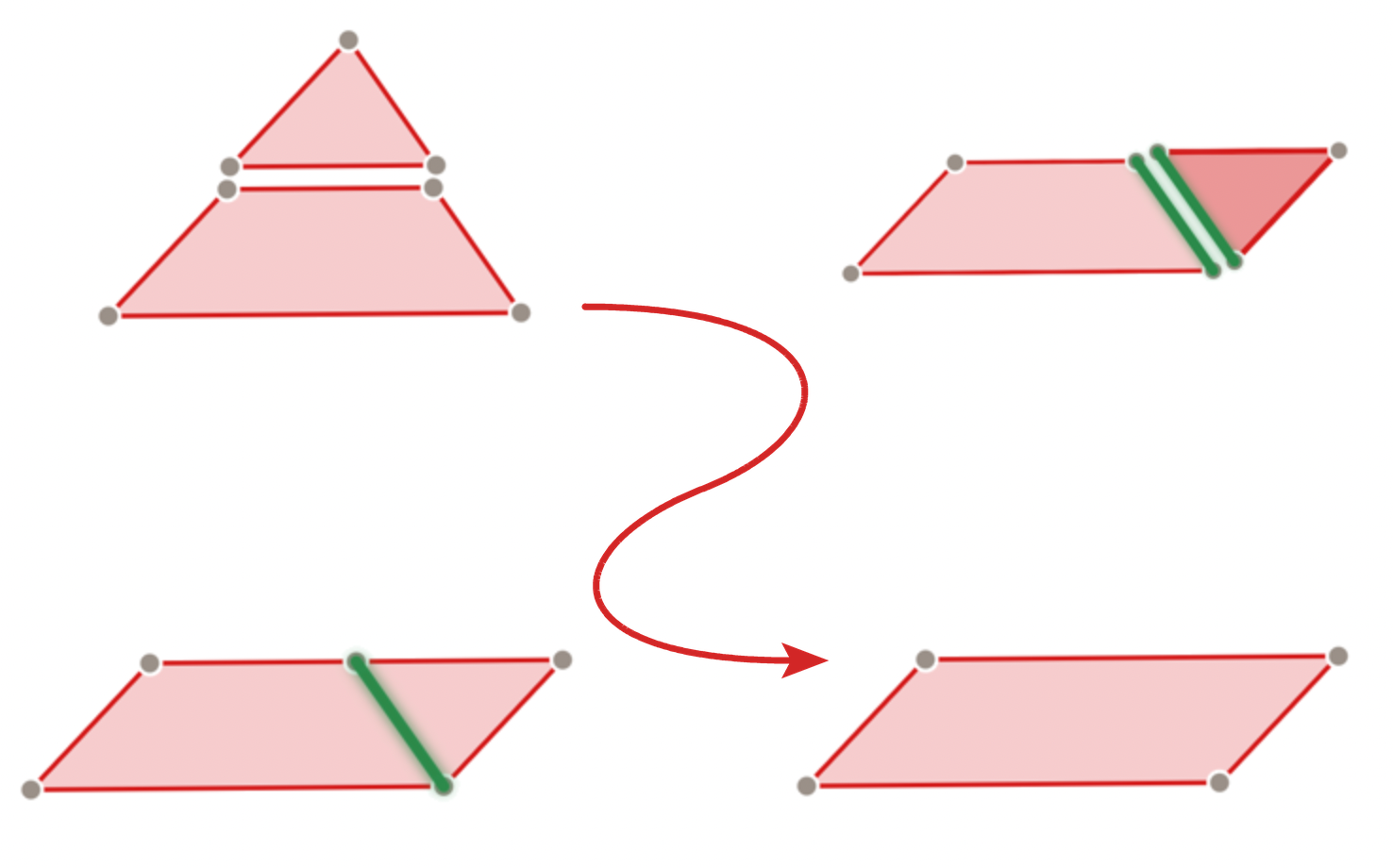
Once pieces are sliced, you can continue slicing them, or you can translate, rotate, or reflect them. Below, for example, after slicing a triangle along its midline, you can rotate one piece and then align the two pieces side by side. When two edges of the same length are near each other, they turn green, and when you let go, the edges snap together. Press Join and—presto!—the pieces are glued together to form a parallelogram with no evidence of a seam.
With just a few simple slicing options, there are a surprising number of dissections activities awaiting students. For example:
- Construct a trapezoid and make a copy of it. Join the two trapezoids to make a parallelogram. If you know the area formula for a parallelogram, how can you use this to derive the area formula for a trapezoid?
- Slice a triangle along its altitude and then flip one of the two right triangles. Join the two pieces to form a trapezoid. If the triangle has base b and height h (with area bh/2), how can you use this to derive the area of the trapezoid?
- Find a way to slice a square so that some of its pieces can be joined to form a square with half the area of the original square.
- Slice a random quadrilateral into pieces that can be joined to form a rectangle. Can you describe a general strategy that works for any quadrilateral?
The GeoSlice app includes a short video tutorial as well as a collection of 24 dissection activities that accompany it. If you’d like to play with other, more unusual dissections, be sure to check out my other new app, Hinged Dissections, which presents 10 interactive hinged dissections from Greg N. Frederickson’s 2002 book, Hinged Dissections: Swinging & Twisting.
